
Accessibility

Recite Me ToolbarUser Guide

Accessibility for Everyone

We believe that everyone should be able to access and enjoy the web. The Recite Me Accessibility Toolbar is here to help make that possible.
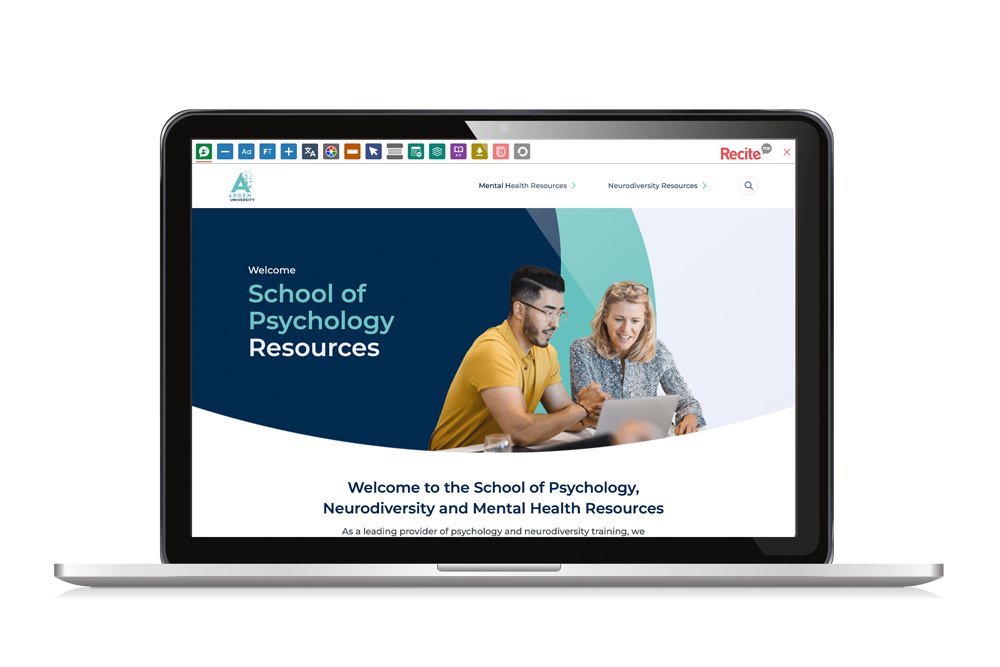
Adaptable Tools

You have the freedom to browse, read and engage with content in the way that works best for you. A range of easy-to-use tools, including text-to-speech, translation, styling customisation and reading aids. Use the button at the top of each page on our site to access the Recite Me Accessibility tools.

Below is your guide to all the features of the Recite Me Accessibility Toolbar

Text to speech

The text to speech feature will help you by reading aloud the website text, which can be customised to suit you.

  • Back: Rewind to the previous paragraph of text.
  • Play: Click the Play button to read the text aloud.
  • Forward: Skip forward to the next paragraph of text.
  • Download Audio: Highlight a section of text and download it as an audio file to consume offline.

Translation

Quickly and easily translate our web content into over 100 languages, including 65 text to speech voices.

  • Language: Translate text into a different language.
  • Play: Click the play button to read translated text aloud.

Text Styling & Customisation

To allow you to change how this website looks to suit your personal taste, you are able to customise this website’s colour scheme as well as the text, font style, size, colour, and spacing.

  • Decrease: This will decrease the text size.
  • Font: Choose from a range of fonts and customise line height, spacing and size.
  • Increase: This will increase the text size.
  • Colour: Customise the colour palette of a website, including the background, text and link colours.
  • Focus Text: Emphasise the most critical parts of words, to guide the eyes smoothly through the text.

Focus Tools

To simplify use and support your Arden University School of Psychology Resources website experience, the Recite Me web accessibility toolbar provides five main tools:

  • Ruler: Use the reading ruler to stay focused on lines of content.
  • Cursor Options: Customise the cursor size and colour to help focus on page location.
  • Screen Mask: Filter out unnecessary distractions to focus on the content you want to read.
  • Text-Only Mode: Removes all images, video and design leaving text and links to consume.
  • Margins: While in text-only mode reposition text on the screen to aid ease of reading.

Reading Aids

To simplify use and support your website experience, the Recite Me web accessibility toolbar provides three main tools:

  • Dictionary: Easily highlight a word and find the definition on the page.
  • Page Summariser: Eliminate unnecessary content, to surface core information to easily understand at different reading ages.
  • Magnifier: Like the offline world, zoom x2 onto a section of the website page to aid reading.

Settings

Edit the user settings of the Recite Me toolbar, including reading speed and voice type, reset the toolbar to factory defaults, and explore in-depth how to use it.

  • Settings: Adjust your Recite Me Toolbar settings.
  • Reset: This will restore the default settings.
  • User Guide: Will give you an overview of the Recite Me Toolbar Features.
Back to top